
We see this constantly at Fix My Laptop. A customer comes in convinced their data is safe because there’s a little blue cloud icon in the corner. Then something goes wrong. Storage fills up. A warning pops up. They click the wrong thing. Files disappear everywhere. And suddenly that cloud doesn’t look so friendly.
Here’s what actually happens. When you set up Windows 11, Microsoft nudges you hard to sign in with a Microsoft account. During that setup, OneDrive quietly enables what it calls “backup”. It sounds responsible and sensible. Like someone is watching out for you. What it really does is move your Desktop, Documents, and Pictures folders into OneDrive. Not copy. Move. That distinction matters more than Microsoft wants to admit.
If you have the free 5GB plan, which most people do, and you’ve been using your computer for more than a few months, you’re probably already over that limit. Family photos alone can eat 5GB for breakfast. Add a few phone backups, PDFs, and Outlook attachments and you’re done. Once OneDrive runs out of space, it starts nagging. “Free up space”, “Upgrade your storage” or “Your files aren’t syncing”. It creates just enough urgency to make you click quickly instead of thinking clearly.
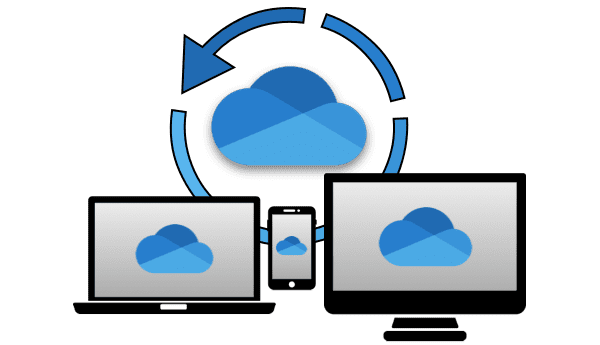
Now here’s the trap. OneDrive is not just online storage. It’s a synchronization engine. That means whatever happens in the cloud happens on your computer. Whatever happens on your computer happens in the cloud. It’s a mirror. Delete a file from OneDrive online, it deletes from your PC. Delete it from your PC’s OneDrive folder, it deletes from the cloud. Empty the online recycle bin to “free up space”, and the file is gone everywhere. Not misplaced. Not hidden. Gone. And if you have several computers synced to the same account, those files will be GONE from all of them.
People assume the cloud is a separate copy. It isn’t. It’s the same set of files, just mirrored. We’ve had customers delete large files from OneDrive.com thinking they were clearing space online only to discover they had just wiped them off their laptop as well. By the time they realise, they’ve emptied the Recycle Bin because OneDrive kept complaining about storage. That’s when it stops being inconvenient and starts being permanent.
Data loss isn’t dramatic. It’s quiet. It’s a few clicks made under mild pressure. Microsoft’s “Free up space” option makes it worse. It points you to large files already stored online. It does not clearly explain that deleting them deletes your local copies too. It also ignores the bigger issue: if your Documents folder itself exceeds 5GB, OneDrive will keep pushing until you either delete enough data or pay for more storage.
You can see where this is heading. The easiest solution Microsoft presents is to upgrade. Pay for 100GB. Or sign up for Microsoft 365 and get 1TB. Suddenly the warnings disappear. The pressure lifts. Everything feels fine again. Is that extortion? That’s your call. Most people can’t be bothered with backups, so cloud sync makes it easier to have files accessible after their computer crashes.
Now let’s be fair. OneDrive isn’t evil. It’s just misunderstood and aggressively marketed. If you understand that it is a synchronization tool, not a backup system, you can use it safely. It’s useful for keeping the same files across multiple devices. It’s useful for collaboration. It’s useful for convenience. What it is not is protection against accidental deletion, ransomware, corruption, or your own future self clicking something you didn’t fully read.
A proper backup creates independent copies that are not automatically altered when you make a mistake. If you delete a file from your computer, a real backup still has yesterday’s version sitting untouched on an external drive or backup system. If ransomware encrypts your files, a real backup remains clean. If OneDrive wipes something because you misunderstood a prompt, a real backup doesn’t care.
Backup and sync are different technologies solving different problems. Sync says, “Keep everything the same everywhere”. Backup says “Keep a separate copy in case something goes wrong”. When customers come in after losing data through OneDrive, the first question we ask is simple. “Do you have another backup?” Most of the time the answer is no, because they thought OneDrive was that backup. It isn’t.
If you want to use OneDrive, do it with intent. Keep sensitive business data outside of the OneDrive folder unless you specifically want it synced. Be conscious of your storage limits. Understand that turning off the “backup” feature does not always undo what it already moved. Know where your actual files live on disk. And most importantly, implement a proper backup strategy that does not rely solely on OneDrive. That means local external backups and ideally an independent cloud backup service designed for recovery, not synchronization.
We’re blunt about this because we see the consequences. Photos from ten years ago. Small business accounting files. Draft contracts. University theses. They don’t come back just because someone assumed the cloud meant safe. The blue cloud icon is not a shield. It’s a mirror. If you want real protection, you need something that isn’t connected to your daily mistakes. Something that doesn’t politely delete your files everywhere just because you clicked “free up space”.
At Fix My Laptop, we don’t sell panic. We fix the aftermath of it. And when it comes to data, prevention is cheaper than recovery every single time. OneDrive can be part of your workflow. It should never be your only safety net.


